Step 1: Open Gmail
Open your Gmail account where you receive your expert requests. Click on the little gear icon for your email settings. It looks like this:
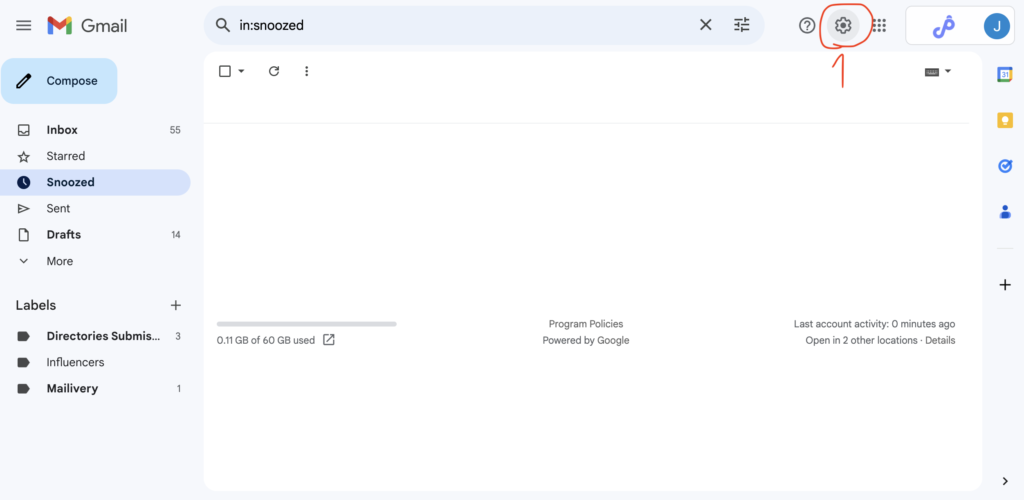
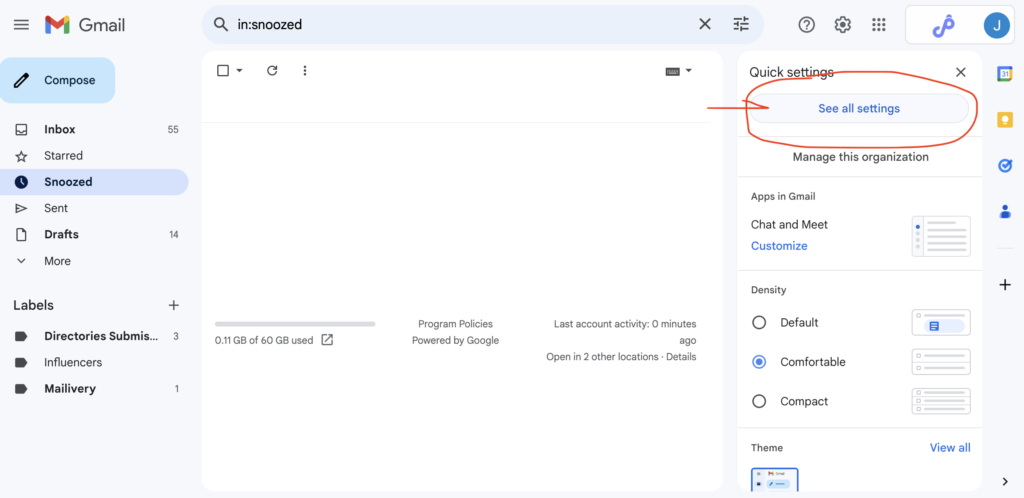
Step 2: Click on the button See All Settings
It looks like this:
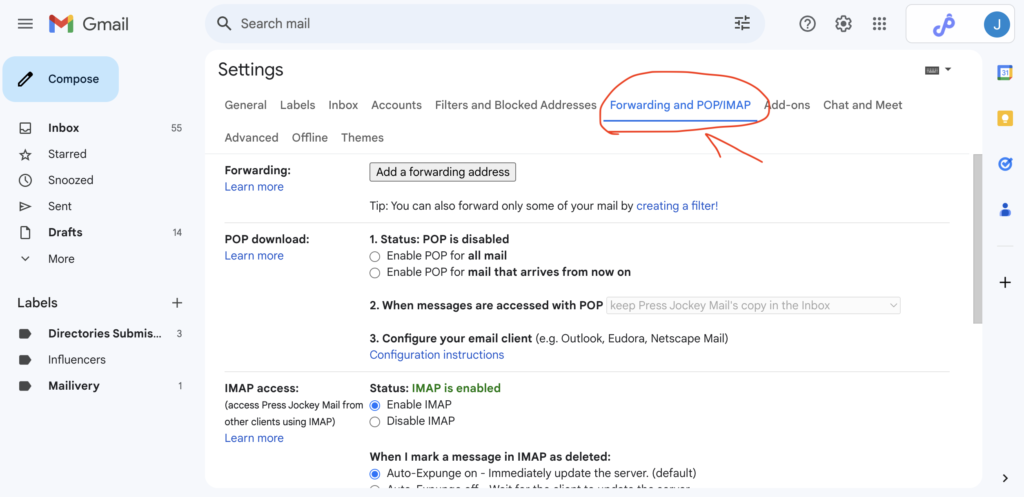
Step 3: Click on the Forwarding and POP/IMAP button
You’ll find it here:
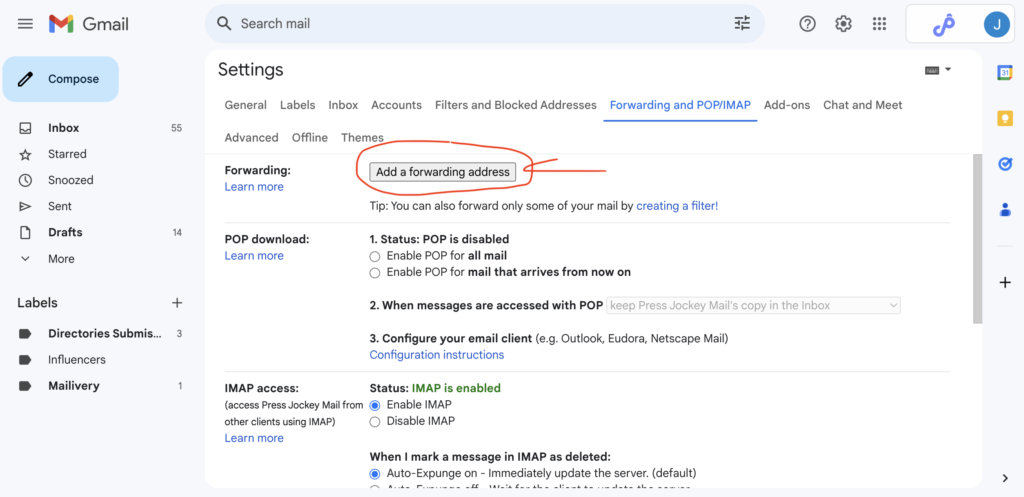
Step 4: Click on “Add a forwarding address” button
You’ll find it here:
Step 5: Add our forwarding address
Please add this email address: [email protected]
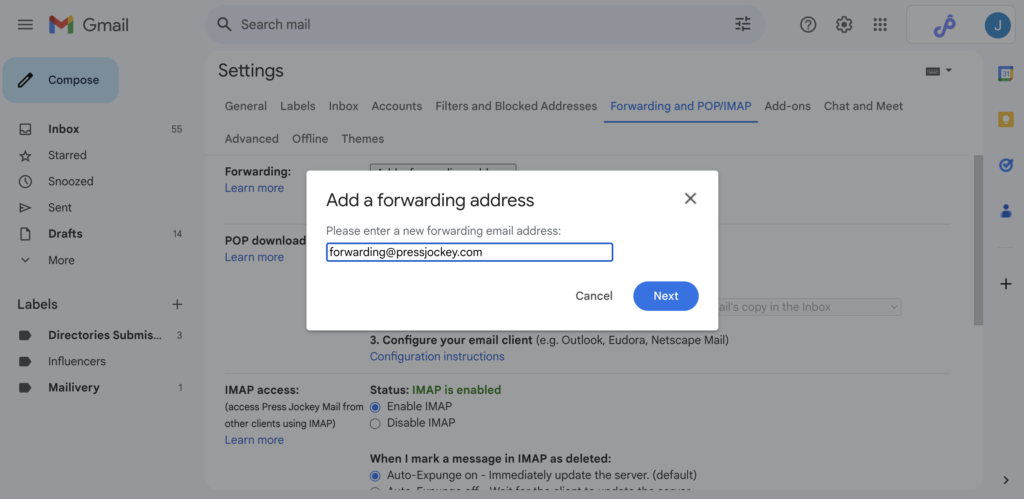
Click on Next.
You will see a pop-up that asks you to confirm if you want to forward emails to this email address.
Click on “Confirm”.
Congrats! Now you can forward ANY expert request email to your Press Jockey account!
Setting Up Filters (How to forward ANY expert request email to your Press Jockey account!)
Step 1: Forwarding your expert request emails to Press Jockey
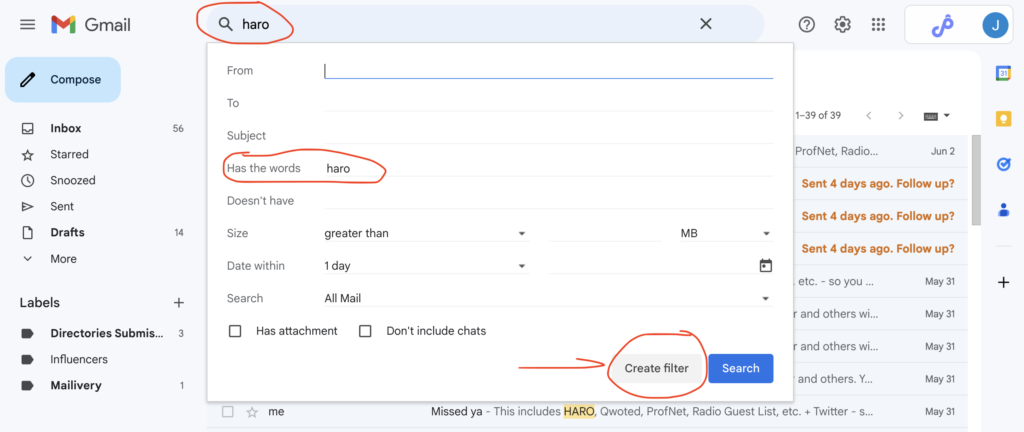
In Gmail, type in the name of one of the platforms that you get expert requests from. For example, you can type in “HARO” or “Qwoted” in your search bar. You can type in any platform that you get expert requests from. Press enter.
This will bring up all of the emails that you’ve received that have your searched word in it.
Step 2: Click the “Show Search Options” icon in your search bar.
It looks like this:

Step 3: Click the “Create Filter” button.
Make sure one (or multiple) of the following have been filled out:
- Has the words: _________ (include one of the words from the platforms you’d like to forward, in this case you can see I’ve included the word “haro”.)
- From: _________ (you can include any of the expert request platforms emails here)
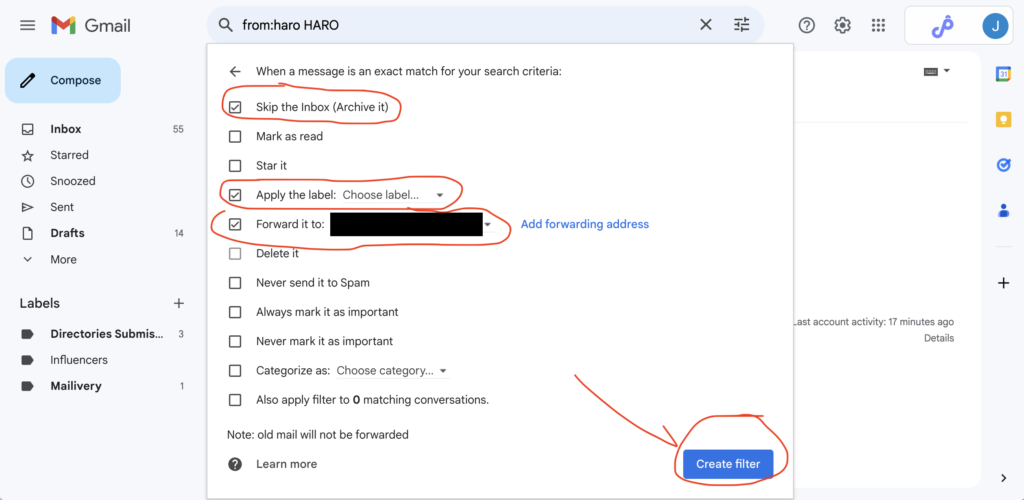
Step 4: Select the Press Jockey email address from your forwarding option
Make sure you click on the checkmark next to the “Forward it to:”
Select the Press Jockey email address.
Once you click on “Create filter” only these specific emails will be forwarded to Press Jockey. They will also still remain in your account.
- We’d also recommend “Skip the inbox (Archive it)” so the emails don’t clog your inbox.
- We’d also recommend “Apply the label: Choose label” to these emails so that they land in a folder of your choosing.
Want Press Jockey to monitor and help you manage other platforms?
Simply repeat the process of creating a filter for each of the platforms you want Press Jockey to monitor and manage for you and we’ll do the rest.