Setting up 2-step authentication on your Yahoo! Small business / Turbify Small Business account is really simple! Here’s how:
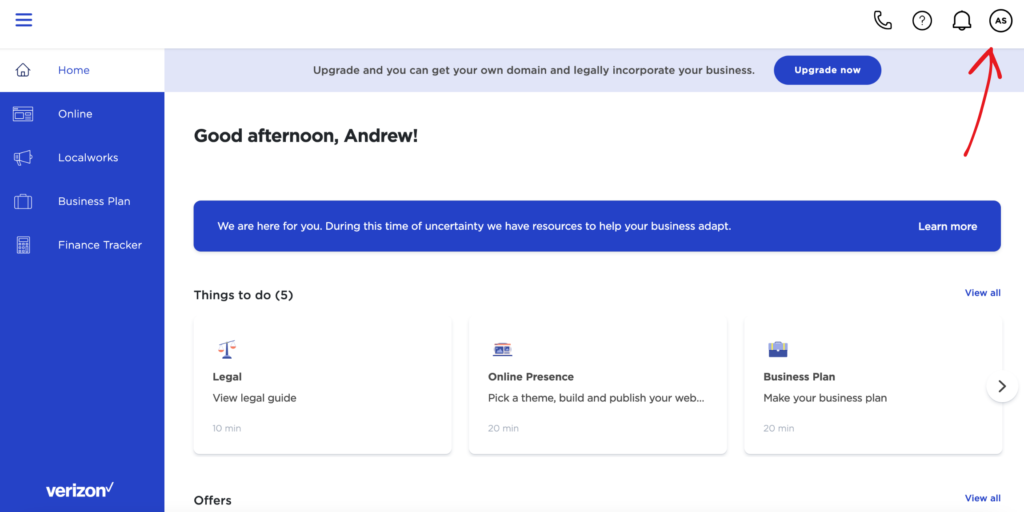
1. Start by heading to the homepage. When you’re there, click on your account icon in the top right-hand corner.
You’ll see it here:
2. Click on “My Account” in the drop-down menu.
It looks like this:
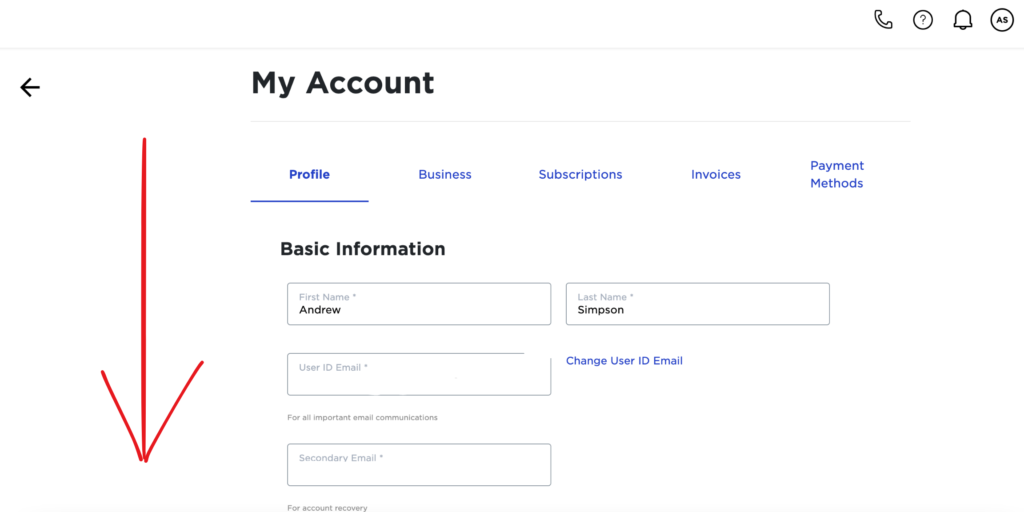
3. Scroll down until you see “Account Security”
Click on it.
4. Turn on 2-step verification using the phone number you registered with.
Under “Account Security”, you’ll see “Turn on 2-step verification using the phone number above. This is the phone number you registered your account with. Click “Continue”.
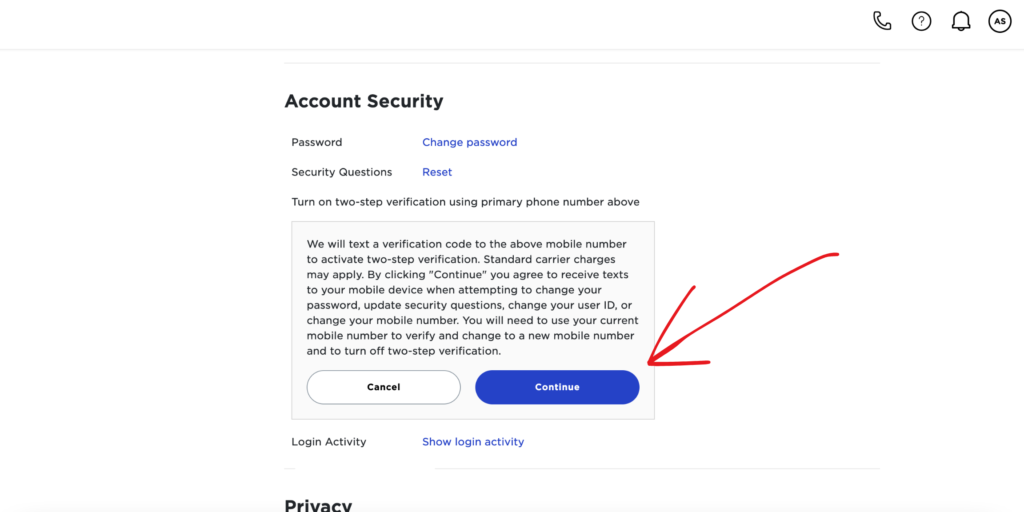
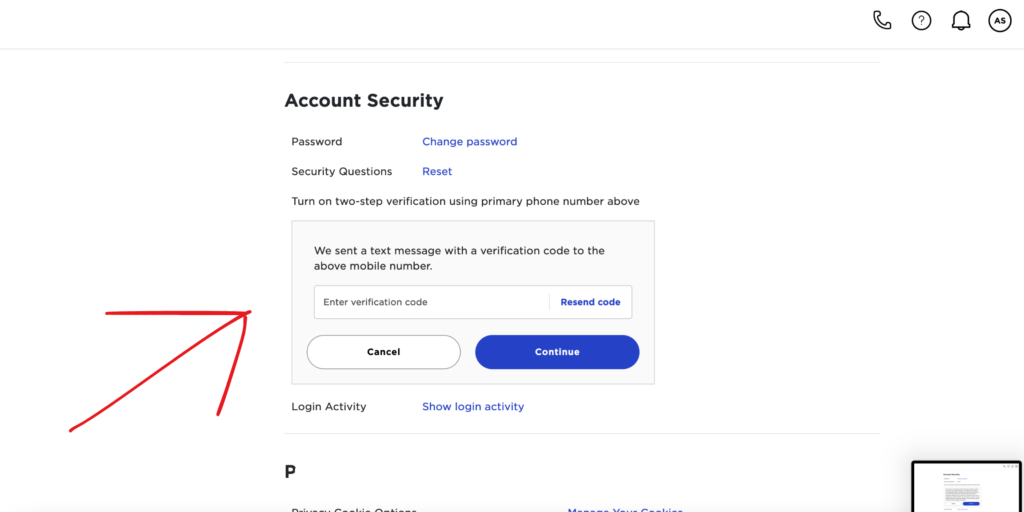
5. Enter the code sent to your mobile number and click “Continue”.
You can do that here:
6. Click “Save” to complete the process!
And you’re done!
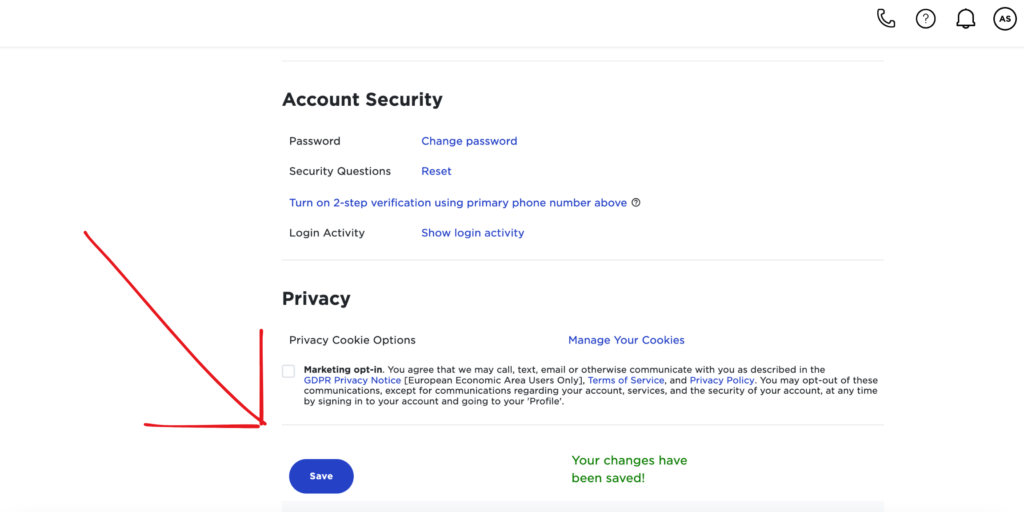
Now you’ve successfully added 2-FA to your Turbify account. Congratulations!
Now you can fully connect Press Jockey to your Turbify / Yahoo! small business account to monitor and manage all of your inbound expert requests.