Here are the other “how to guides” you might need to check-out in order to get your Gmail account connected with Press Jockey:
Gmail users: How you can turn on 2-step authentication for your Gmail account
Gmail users: How you can connect your Gmail account to Press Jockey
Please note: This step is NEEDED to activate the most powerful features of Press Jockey. We want to make sure your account is secure and you are strapped in for success!
Here’s how you can turn on 2-factor authentication for your company accounts.
Step 1: Make sure you are in the administrator account for your company domain
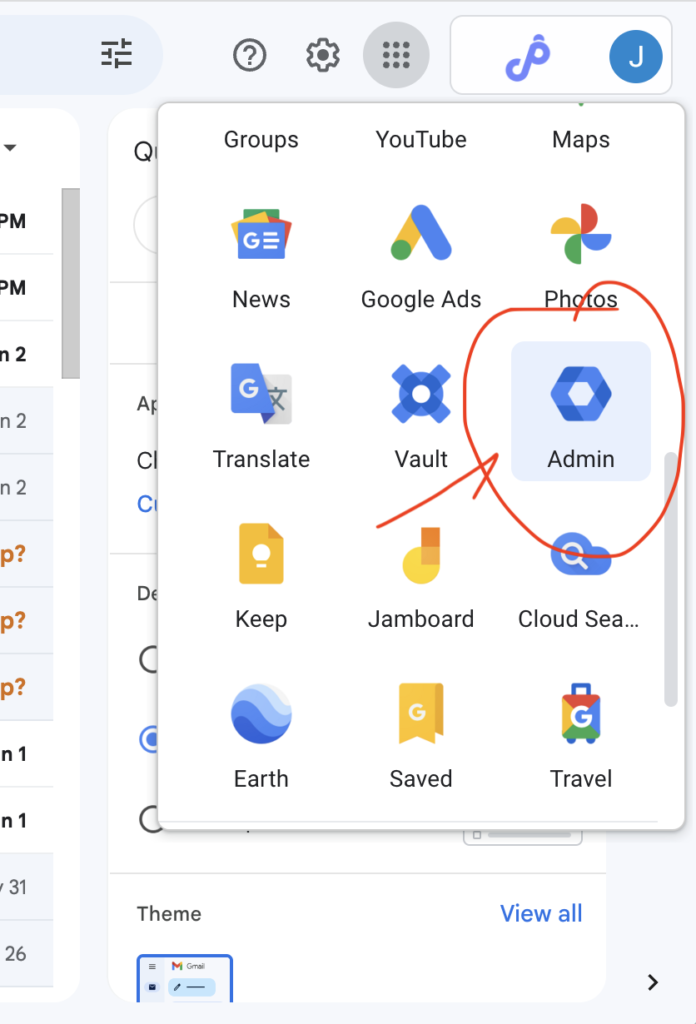
In Gmail, you can click on the 9-dots icon, to see more settings and options for your account. It looks like this:

Step 2: Click on the “Admin” icon to see your administrator settings.
This is where you will turn on 2-step authentication for ALL users under this domain.
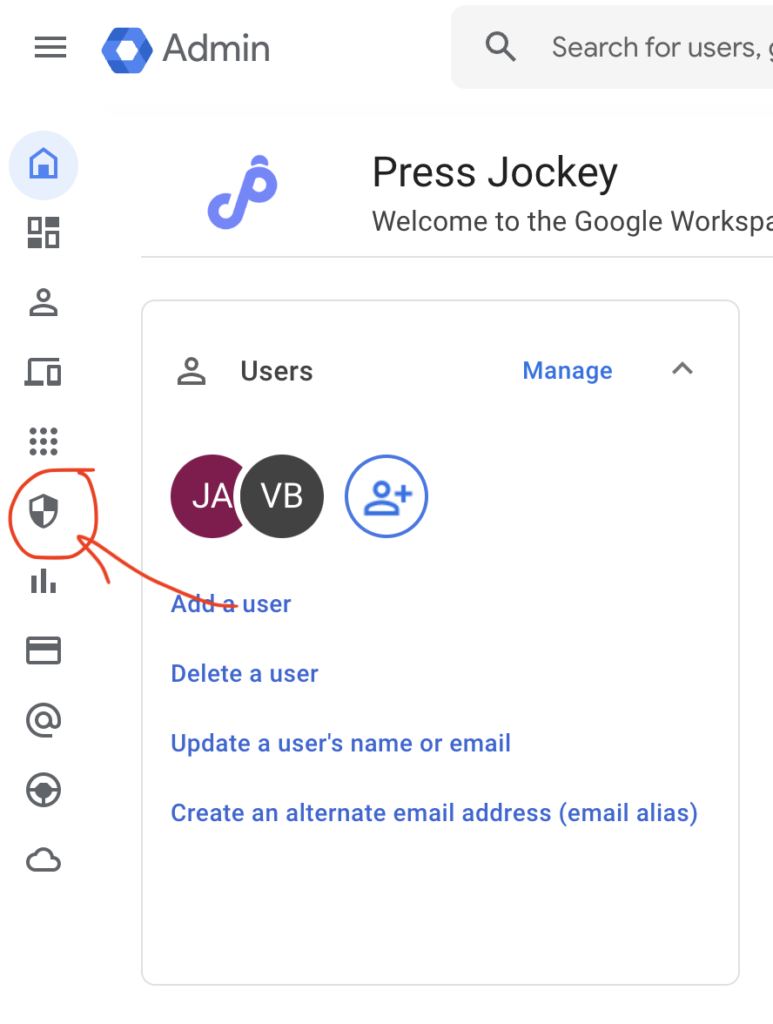
Step 3: Click on the “Security” Icon.
When you hover over this icon, the Administrator menu will appear, showing you the names of each of the options. It looks like this:
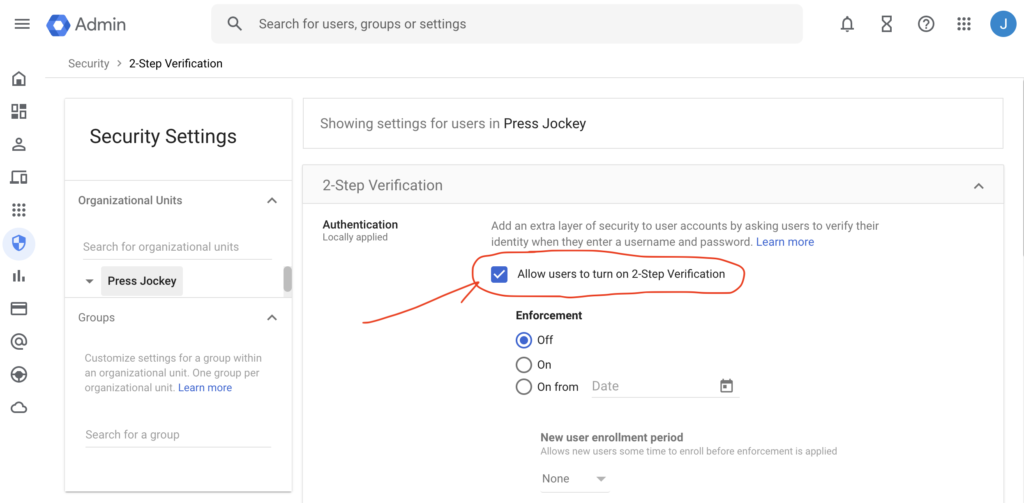
Step 4: Scroll down and turn on “Allow users to turn on 2-step verification”
It looks like this. Click on it, and save your settings.
Congrats!
Now your entire organization can turn on 2-step authentication if they choose, which will help make their accounts more secure.